

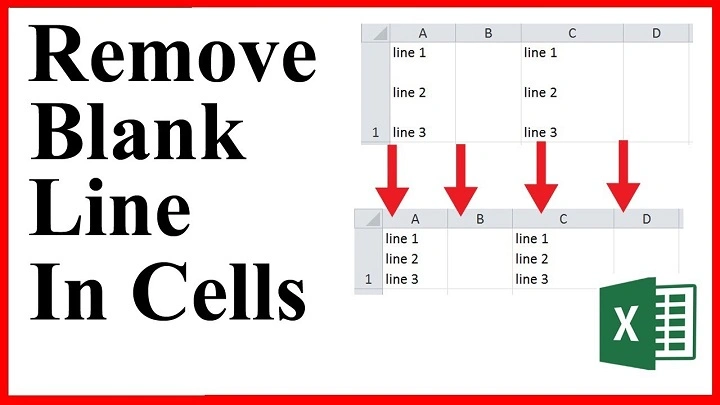
Deleting a line—commonly referred to as a row—in Excel is a basic yet essential skill for managing data effectively. Whether you’re cleaning up unnecessary rows, correcting an import error, or updating your spreadsheet, Excel provides several ways to delete a line. This guide explains how to delete a line in Excel on both Windows and Mac, using keyboard shortcuts, menus, and right-click options.
Step-by-Step Guide to Deleting a Line (Row) in Excel
Step 1: Open Your Excel Workbook
Start by launching Microsoft Excel and opening the file containing the row(s) you want to delete:
- Go to File > Open.
- Select your workbook from your device or OneDrive.
- Make sure the correct worksheet is active.
Step 2: Select the Line (Row) You Want to Delete
You can delete a single line or multiple lines depending on your need:
To delete a single row:
- Click the row number on the far left (e.g., row 4).
- The entire row will be highlighted.
To delete multiple rows:
- Click and drag across multiple row numbers.
- Or, hold Ctrl (Cmd on Mac) and click each row number individually.
Step 3: Delete the Selected Line(s)
There are several ways to delete rows:
Method 1: Right-Click Menu
- Right-click the selected row number(s).
- Choose Delete from the context menu.
- The row(s) will be removed, and rows below will shift up.
Method 2: Ribbon Menu
- Go to the Home tab.
- In the Cells group, click the Delete dropdown.
- Select Delete Sheet Rows.
Method 3: Keyboard Shortcut
- After selecting the row(s), press:
- Ctrl + – (Control and minus) on Windows
- Cmd + – on Mac
- Choose Entire row in the dialog box (if it appears), then click OK.
Step 4: Save Your Changes
Once the rows are deleted:
- Go to File > Save, or
- Press Ctrl + S (Cmd + S on Mac) to save the updated worksheet.
How to Delete Blank or Empty Lines Automatically
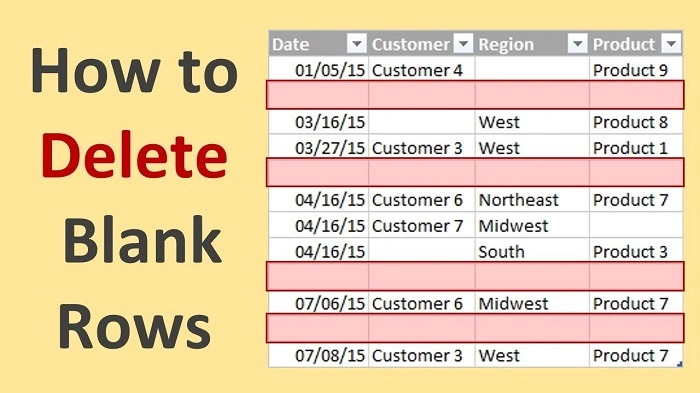
Using Excel Filters
- Select your data range.
- Click Data > Filter.
- Use the filter dropdown to find Blanks.
- Select all blank rows, right-click, and choose Delete Row.
Using Go To Special
- Press Ctrl + G, then click Special.
- Choose Blanks and click OK.
- Right-click any selected blank cell and choose Delete > Entire Row.
What Happens When You Delete a Line in Excel?
Data Below the Row Shifts Up
When a row is deleted, all rows below move up to fill the gap.
Formulas May Adjust Automatically
If you’re referencing the deleted row in formulas, Excel will update them—or return an error if the reference is no longer valid.
Formatting is Removed
Deleting a row also removes any formatting, comments, or data validation applied to that row.
Undoing a Deleted Line
If you delete a line by mistake:
- Immediately press Ctrl + Z (Cmd + Z on Mac) to undo.
- Or go to Quick Access Toolbar > Undo.
Tips for Managing Lines in Excel
Freeze Rows Before Deleting
To avoid deleting headers by mistake, use View > Freeze Panes to lock them in place.
Use Filters to Target Specific Rows
Filters make it easier to find and delete only the rows that meet certain conditions (e.g., all rows with “N/A” values).
Be Cautious with Merged Cells
Deleting rows that contain merged cells can produce unexpected results. Unmerge them first if needed.
FAQs About Deleting Lines in Excel
Can I delete rows based on specific criteria?
Yes. Use filters or formulas to find the rows, then delete them manually or with a macro.
Will deleting a row affect formulas in other cells?
Possibly. If a formula references a deleted row, it may update automatically or show an error.
How do I delete every other line in Excel?
Add a helper column with alternating numbers, filter for even/odd, and then delete the filtered rows.
Can I delete rows using VBA?
Yes. Excel macros can automate deleting rows based on conditions. Use caution and save your file first.
What’s the fastest way to delete a blank row?
Use Ctrl + – after selecting the blank row or use Go To Special > Blanks for multiple deletions.
Deleting a line in Excel is a quick and vital operation that helps keep your spreadsheets clean and organized. Whether you’re deleting one row or hundreds, Excel offers multiple methods—manual, shortcut-based, or automated. By following this guide, you can efficiently manage and delete lines without compromising your data integrity.