

If you want to remove unwanted or old text messages from your Android phone, it’s simple to do so. Whether you’re freeing up space or just cleaning up your messaging app, this guide will show you how to delete texts on Android devices.
Step-by-Step Guide to Deleting Texts on Android
Step 1: Open Your Messaging App
To begin, open the messaging app where the texts are stored. This could be the default SMS app (like Messages) or any third-party messaging app you’ve installed (such as WhatsApp or Facebook Messenger).
- On Android:
- Tap the Messages app or any messaging app you use.
- You should see your list of conversations.
Step 2: Select the Conversation or Texts to Delete
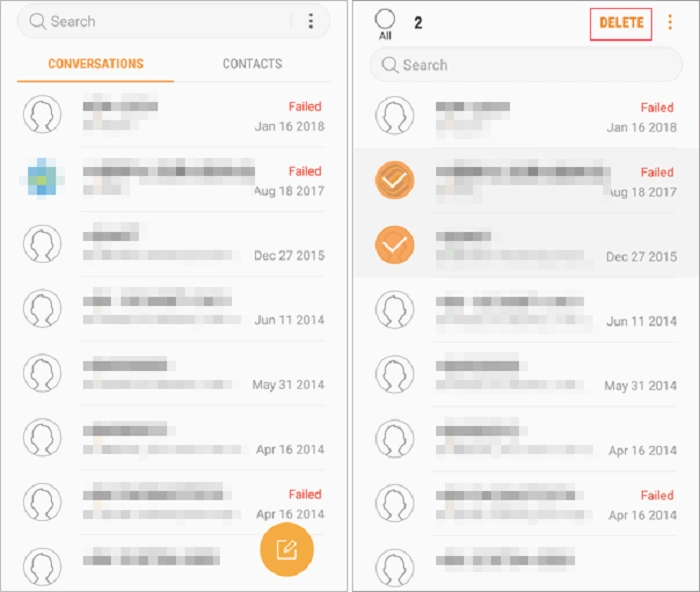
- To Delete an Entire Conversation:
- Scroll through your list of conversations to find the one you want to delete.
- Tap and hold on the conversation until a menu appears (on some devices, you may have to tap the three dots or trash can icon in the top-right corner).
- Select Delete from the options. This will remove the entire conversation.
- Scroll through your list of conversations to find the one you want to delete.
- To Delete Individual Texts:
- Open the conversation that contains the text(s) you want to delete.
- Tap and hold on the specific message you want to delete until a menu appears.
- Select Delete from the options. On some devices, you might see the option to delete multiple messages at once, allowing you to select multiple texts in the same conversation.
- Open the conversation that contains the text(s) you want to delete.
Step 3: Confirm Deletion
Once you’ve selected the conversation or individual texts to delete, you’ll be asked to confirm the deletion:
- For conversations: You’ll usually see a confirmation prompt asking if you’re sure you want to delete the entire thread. Confirm by selecting OK or Delete.
- For individual texts: You may be asked if you want to delete just that message. Confirm by tapping Delete or Yes.
Step 4: Verify the Deletion
After confirming the deletion, the selected conversation or text should be gone from your phone. You can go back to your messaging app to ensure the texts have been removed.
Additional Considerations
Can I Recover Deleted Texts on Android?
Once you delete text messages from your Android device, they are typically gone for good. However, if you’ve backed up your texts to Google Drive or another cloud service, you may be able to restore them. Some apps like SMS Backup & Restore also allow you to back up and restore messages.
How Can I Delete Texts Automatically?
If you want to automatically delete old texts, some messaging apps allow you to set a limit or schedule for message retention:
- Messages by Google: You can set a message retention policy in the app settings to automatically delete messages older than a certain period.
- Third-Party Apps: You can use apps like SMS Cleanup or Auto Delete Messages to automate the process of deleting old messages after a set period.
Will Deleting Texts Free Up Space on My Android?
Yes, deleting old conversations and texts can free up storage on your phone. Text messages, especially those with large media attachments, can take up significant space over time. Clearing out unnecessary texts can help improve performance and free up storage.
How Do I Delete Texts from WhatsApp or Other Messaging Apps?
The process of deleting texts on third-party apps like WhatsApp is similar but may differ slightly in terms of navigation:
- WhatsApp: Open the chat, tap and hold the message or conversation, and select Delete.
- Facebook Messenger: Tap and hold the message you want to delete, then select Remove or Delete.
FAQs About Deleting Texts on Android
Can I delete all my text messages at once on Android?
Yes, most Android devices allow you to delete all text messages in a conversation. You can either delete the entire conversation or use third-party apps to clear all texts from your phone.
What happens to attachments when I delete text messages?
When you delete a text message, any attachments (such as images or videos) associated with that message will also be deleted. However, if you’ve saved those attachments to your gallery or another app, they will remain on your device.
Can I recover deleted text messages on Android without a backup?
Without a backup, it’s generally not possible to recover deleted text messages. However, there are some data recovery tools available, but success is not guaranteed, especially if new data has overwritten the deleted texts.
How do I delete texts on Android without opening the conversation?
On many Android devices, you can delete entire conversations directly from the main screen of the messaging app by tapping and holding on the conversation you want to remove.
How can I delete texts from a specific sender?
To delete texts from a specific sender, you can either delete individual messages or delete the entire conversation with that sender. If using a third-party messaging app like WhatsApp, you can select multiple messages to delete.
Deleting texts on Android is a quick and easy process, whether you’re clearing up space or simply removing unwanted conversations. By following the steps outlined above, you can efficiently manage your messages and ensure your device stays organized.