

If you want to delete messages stored in iCloud, whether it’s to free up space or maintain privacy, the process is straightforward. iCloud syncs your messages across all Apple devices, so deleting them from iCloud will remove them from all connected devices. This guide will show you how to delete messages on iCloud and ensure they’re removed from all devices.
Step-by-Step Guide to Deleting Messages on iCloud
Step 1: Check Your iCloud Settings
Before deleting messages, ensure that your messages are being synced with iCloud. Follow these steps to verify:
- On iPhone/iPad:
- Open Settings.
- Tap on your Apple ID (your name at the top).
- Tap iCloud.
- Make sure Messages is turned on. This will allow your messages to sync with iCloud.
- Open Settings.
- On Mac:
- Open System Preferences.
- Click on Apple ID.
- In the sidebar, select iCloud.
- Ensure that Messages is checked.
- Open System Preferences.
Step 2: Open Messages on Your Device
Once you’ve verified that your messages are synced with iCloud, open the Messages app on your device where you want to delete the messages.
- On iPhone/iPad: Open the Messages app.
- On Mac: Open the Messages app.
Step 3: Delete Messages
You can delete messages individually or entire conversations. Here’s how to do it:
- To Delete a Single Message:
- Open the conversation in which the message is located.
- Tap and hold the specific message you want to delete (on iPhone/iPad) or right-click the message (on Mac).
- Select Delete from the menu that appears.
- Open the conversation in which the message is located.
- To Delete an Entire Conversation:
- On iPhone/iPad: Swipe left on the conversation in the Messages app, then tap Delete.
- On Mac: Right-click the conversation in the sidebar and select Delete Conversation.
- On iPhone/iPad: Swipe left on the conversation in the Messages app, then tap Delete.
Step 4: Confirm the Deletion
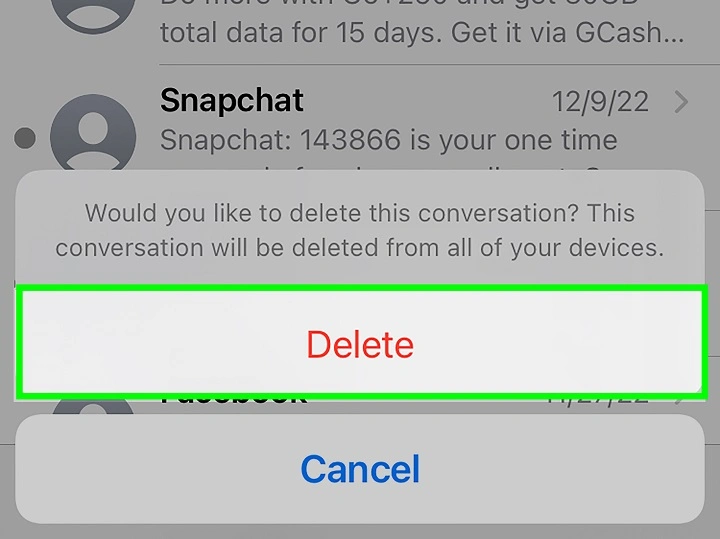
After you select Delete, you may be asked to confirm that you want to remove the message or conversation. Confirm the deletion to proceed.
- On iPhone/iPad: Tap Delete in the confirmation pop-up.
- On Mac: Click Delete to confirm.
Step 5: Ensure Deletion Across All Devices
Since iCloud syncs messages across all your Apple devices, deleting messages on one device will remove them from others, provided they are all signed in to the same Apple ID and have iCloud enabled for Messages.
- On iPhone/iPad: Check that the deleted messages no longer appear in the Messages app on other devices.
- On Mac: Verify that the message or conversation is also deleted in the Messages app on your Mac.
Step 6: Clear Deleted Messages from iCloud (Optional)
If you want to ensure that deleted messages are permanently removed from iCloud and your devices, you can clear your iCloud storage:
- On iPhone/iPad:
- Open Settings.
- Tap your Apple ID at the top.
- Tap iCloud.
- Scroll down and tap Manage Storage.
- Select Messages, then choose Delete to clear the message data from iCloud.
- Open Settings.
- On Mac:
- Open System Preferences.
- Click Apple ID.
- Click iCloud, then select Manage.
- Choose Messages and delete the stored message data.
- Open System Preferences.
Additional Considerations
Can I Recover Deleted Messages from iCloud?
Once you delete messages from iCloud, they are generally permanently deleted, especially if you’ve cleared them from iCloud’s storage. However, if you have an iCloud backup from before the deletion, you might be able to restore the deleted messages by restoring the backup. Keep in mind that restoring a backup will replace current data on your device with data from the backup date.
How Can I Prevent Messages from Being Stored in iCloud?
If you don’t want your messages to be saved in iCloud, you can turn off the Messages syncing feature:
- On iPhone/iPad: Go to Settings > [Your Name] > iCloud, then turn off Messages.
- On Mac: Go to System Preferences > Apple ID > iCloud, then uncheck Messages.
Will Deleting Messages in iCloud Affect My Other Devices?
Yes, deleting messages in iCloud will sync the deletion across all devices linked to the same Apple ID. If you delete messages on one device, they will be removed from all your devices.
FAQs About Deleting Messages on iCloud
Can I delete messages in iCloud without deleting them from my device?
No, when you delete messages from iCloud, they are removed from all devices that use the same Apple ID and have iCloud syncing enabled.
How do I delete iMessages from iCloud?
The process to delete iMessages from iCloud is the same as deleting text messages. Simply delete the conversation or message from your Messages app, and it will be removed from iCloud if syncing is enabled.
Can I recover deleted messages from iCloud?
If you have an iCloud backup from before the messages were deleted, you can restore that backup, but this will replace any data added after that backup.
How do I clear my iCloud message storage?
You can clear your iCloud message storage by going to Settings > [Your Name] > iCloud > Manage Storage > Messages, and then deleting stored message data.
Will deleting messages free up iCloud storage?
Yes, deleting messages will free up space in your iCloud storage, especially if they include attachments like photos or videos.
Deleting messages from iCloud is a simple process that ensures your messages are removed across all devices connected to your Apple ID. By following the steps outlined above, you can manage and delete your messages efficiently. Just make sure you’re confident in your decision to delete, as it’s not easy to recover deleted messages unless you have a backup.