


Google Slides allows users to create, edit, and share presentations online. But sometimes, you might want to delete slides from a presentation for various reasons whether it’s due to mistakes, redundancy, or simply needing a cleaner design. In 2025, there are specific guidelines on how to remove slides from your Google Slides presentation. This guide will explain the steps, what you can do, and limitations on deleting slides.
Can You Delete a Google Slide?
Yes, you can delete a slide in Google Slides, but there are limitations to consider. While you can delete individual slides or even entire presentations, once deleted, the action is permanent and cannot be undone. So, it’s always a good idea to make sure you no longer need a slide before removing it.
What You Can Do:
- Delete individual slides: You can remove single slides from your presentation.
- Delete entire presentations: If you wish to remove the whole file, you can delete the presentation from Google Drive.
- Undo the deletion: If you accidentally delete a slide, you can undo the action using the “Undo” button or shortcut (Ctrl+Z or Cmd+Z) as long as you haven’t closed the presentation.
What You Can’t Do:
- Restore deleted slides after closing the presentation: Once a slide is deleted and the document is saved, the slide cannot be recovered.
- Delete a slide without access: If you don’t have editing access, you won’t be able to delete slides from someone else’s presentation.
How to Delete a Single Slide in Google Slides
Follow these simple steps to delete a slide from your presentation:
- Open your Google Slides presentation.
- Navigate to the slide you want to delete in the left sidebar.
- Right-click on the slide thumbnail.
- Select Delete from the options menu.
Alternatively, you can:
- Select the slide you want to delete.
- Press the Delete or Backspace key on your keyboard.
The selected slide will be deleted immediately, and the presentation will update automatically.
How to Delete Multiple Slides in Google Slides
If you want to remove several slides at once, you can do the following:
- Hold down the Ctrl key (Cmd on Mac) on your keyboard.
- Click on each slide you want to delete in the left sidebar.
- Once all the slides are selected, right-click and choose Delete.
Alternatively, you can also use the keyboard shortcut:
- Hold down Shift and select a range of slides.
- Press the Delete or Backspace key to remove all the selected slides.
This allows you to clean up your presentation quickly.
How to Delete an Entire Google Slides Presentation
If you no longer need the presentation at all, here’s how to delete it completely from your Google Drive:
- Open Google Drive.
- Locate the presentation file you want to delete.
- Right-click on the file and select Remove.
- It will move to the Trash, where it will remain for 30 days before being permanently deleted.
To permanently delete it from the Trash:
- Go to Trash in Google Drive.
- Right-click on the file and select Delete Forever.
This ensures that the presentation is completely gone from your Google Drive.
How to Undo Deleting a Slide in Google Slides
If you delete a slide by mistake, you can undo the deletion if you catch it quickly:
- Click the Undo button located at the top left of the screen (it looks like a curved arrow).
- Alternatively, use the keyboard shortcut Ctrl+Z (Cmd+Z on Mac).
This will restore the deleted slide immediately, as long as you haven’t made additional changes that would overwrite the undo action.
Can You Delete a Google Slide from Mobile?
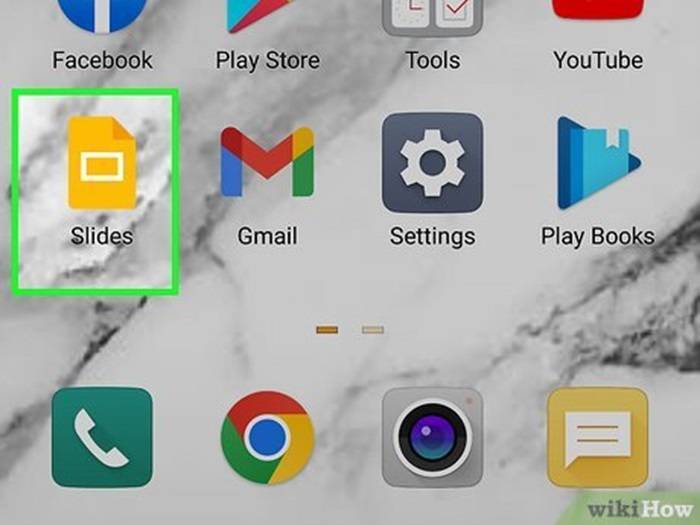
Currently, Google Slides on mobile devices (Android and iOS) does not allow users to delete slides directly. You’ll need to use a desktop browser to remove individual slides. If you want to delete an entire presentation, you can do so through the Google Drive app on mobile devices by selecting the presentation and choosing Remove.
Will Google Ever Let You Delete Slides Differently?
As of 2025, Google Slides offers basic delete functions for individual slides and entire presentations. While there may be updates or features introduced in the future that could improve the flexibility of deletion options, there is no indication that Google will change the basic functionality anytime soon.
FAQs About Deleting Google Slides
Can I permanently delete a slide in Google Slides?
Yes, you can permanently delete a slide, but once it’s removed and you save the presentation, there’s no way to recover it unless you use the undo feature immediately after deletion.
Can I delete multiple slides at once in Google Slides?
Yes, by holding the Ctrl (or Cmd on Mac) key while selecting multiple slides, you can delete them all at once.
Can I delete an entire presentation from Google Drive?
Yes, you can remove an entire presentation by right-clicking the file in Google Drive and selecting Remove, then emptying the Trash to permanently delete it.
Does deleting a slide in Google Slides remove it from shared presentations?
Yes, once a slide is deleted, it is removed for all viewers and collaborators. However, the deletion is final once saved.
Can I recover a deleted slide in Google Slides after closing the presentation?
No, once you’ve closed the presentation after deleting a slide, the slide is gone and cannot be recovered.