


Whether you’ve sold an item elsewhere, changed your mind about selling, or want to clean up your virtual closet, deleting a listing on Poshmark is quick and easy. Poshmark allows users to remove listings at any time, but it’s important to understand the difference between deleting, deactivating, and marking an item as sold. This guide explains how to delete a listing on Poshmark using both the app and website.
Step-by-Step Guide to Deleting a Listing on Poshmark
Step 1: Open the Poshmark App or Website
You can delete listings using either your mobile device or desktop:
- On Mobile: Open the Poshmark app and log in.
- On Web: Go to www.poshmark.com and sign in with your credentials.
Step 2: Go to Your Closet
To find the listing you want to delete:
- Tap on your profile icon at the bottom right of the app or at the top right on the website.
- Select My Closet to view all your active listings.
Step 3: Locate the Listing You Want to Delete
Scroll through your closet to find the specific item you want to remove:
- Tap the listing to open the item’s detail page.
- Make sure the item hasn’t already been sold—sold items cannot be deleted.
Step 4: Tap the Edit Button
To make changes to the listing:
- On Mobile: Tap the “Edit” button in the top-right corner of the screen.
- On Web: Click the “Edit Listing” option under the item’s image.
Step 5: Select Delete Listing
Once in edit mode:
- Scroll down to the bottom of the page.
- Tap or click Delete Listing.
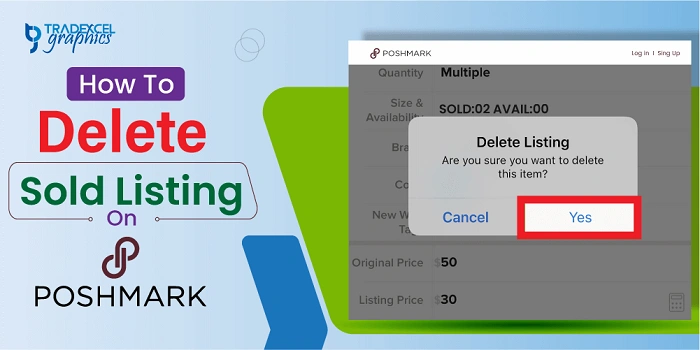
- A confirmation prompt will appear.
Step 6: Confirm Deletion
To finalize:
- Tap or click Yes or Delete when asked to confirm.
- The listing will be permanently removed from your Poshmark closet.
Note: Deleted listings cannot be recovered. If you might want to relist the item later, consider making it Not For Sale instead of deleting it.
What Happens When You Delete a Listing on Poshmark?
The Listing Is Permanently Removed
Once deleted, the listing disappears from your closet and search results.
No Longer Visible to Buyers
Buyers won’t be able to view, comment, or like the deleted item anymore.
Comments and Likes Are Lost
All engagement related to the listing—likes, comments, and shares—will be erased permanently.
How to Mark an Item as Not For Sale Instead
If you’re not ready to delete the listing but want to temporarily remove it from availability:
- Open the listing.
- Tap Edit.
- Toggle the Availability option to Not For Sale.
- Save changes.
This keeps your listing and its comments/likes intact while hiding it from buyers.
How to Delete a Sold Listing (You Can’t)
Once an item is marked as sold:
- It becomes a part of your order history.
- You cannot delete sold listings.
- You can archive the order in your account settings but the listing remains visible in your sold items.
Additional Considerations
Why Can’t I Delete a Listing?
If the Delete option isn’t available:
- Check if the item is already sold or reserved.
- Make sure you’re the original owner of the listing.
Should I Delete or Edit?
If you’re only changing the price, title, or photos, editing is a better option than deleting and starting over.
What if I Want to List the Same Item Again?
Once deleted, you’ll need to re-create the entire listing from scratch. There’s no recovery option.
FAQs About Deleting Listings on Poshmark
Can I delete a sold listing on Poshmark?
No, sold listings cannot be deleted. They remain in your sales history permanently.
What happens to likes and comments when I delete a listing?
All interactions on the listing are erased permanently when it’s deleted.
Can I recover a deleted listing?
No. Once you delete a listing, it cannot be restored. You’ll need to create a new one.
What’s the difference between deleting and marking an item as not for sale?
Deleting removes the listing entirely. Marking as not for sale hides it but keeps the data and engagement.
Can I delete multiple listings at once?
No. Poshmark does not currently offer bulk delete options. Each listing must be deleted individually.
Deleting a listing on Poshmark is simple but permanent. Whether you’re reorganizing your closet, discontinuing a sale, or clearing out inactive items, it’s important to double-check before removing a listing. If you might reuse the listing later, consider marking it as Not For Sale instead. With the step-by-step instructions above, you can manage your Poshmark inventory with ease and confidence.