

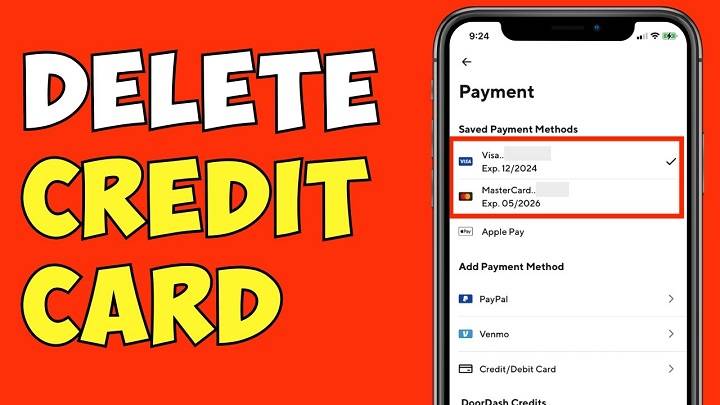
Deleting a payment card from your DoorDash account is a simple process that can be completed in just a few steps. Whether you’ve switched to a new card, or simply wish to remove one from your account, this guide will walk you through the necessary steps to make the update. Here’s how to delete a card from your DoorDash account.
Why Delete a Card from DoorDash?
There are various reasons why you might want to delete a payment card from DoorDash. These include:
- Switching to a new card for better rewards or lower fees
- Updating payment details after the card has expired
- Reducing clutter in your account by removing unused cards
Step-by-Step Guide to Deleting a Card from DoorDash
Step 1: Open the DoorDash App
- Start by opening the DoorDash app on your mobile device.
- If you’re not already logged in, enter your credentials to access your account.
Step 2: Access Your Account Settings
- Once you’re logged in, tap on the Account icon located at the bottom right corner of the app. This will open your account settings.
- In the menu, look for Payment Methods or Payment Settings and tap on it to proceed.
Step 3: Find the Card You Want to Delete
- Under the Payment Methods section, you will see a list of all the cards and payment options linked to your account.
- Scroll through the list and locate the card you wish to delete.
Step 4: Remove the Card
- Tap on the card you want to remove.
- You should now see an option that says Remove or Delete. Tap on this option to delete the card from your account.
- You may be prompted to confirm your action. Confirm that you wish to delete the card.
Step 5: Confirm the Deletion
- Once confirmed, the card will be deleted from your DoorDash account.
- You should see a message confirming that the card has been successfully removed.
Additional Tips for Managing Payment Methods
Add a New Card
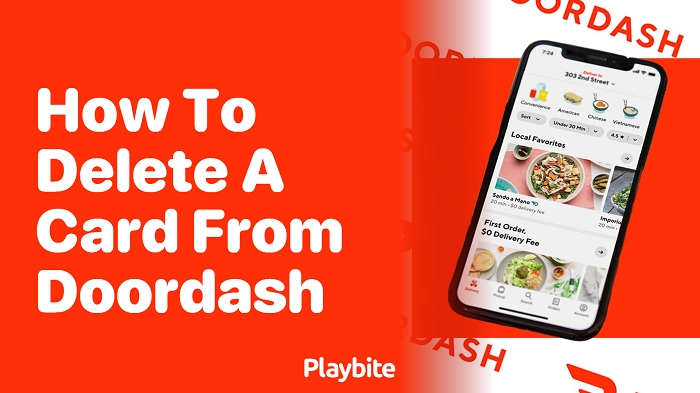
After deleting an old card, you may want to add a new one. To add a new payment method:
- In the Payment Methods section, tap on Add Payment Method.
- Follow the prompts to add your new credit or debit card details.
Set a Default Payment Method
If you’ve added a new card and wish to make it your default payment option, simply tap on the new card and select Set as Default. This will ensure that all future DoorDash orders are charged to your preferred card.
Why Deleting Cards is Important
Managing your payment methods properly ensures you don’t accidentally charge an outdated or incorrect card. Regularly updating and deleting unused cards from your DoorDash account can help prevent issues during checkout and keep your payment information organized.
FAQs About Deleting Cards on DoorDash
Can I delete a card without adding a new one?
Yes, you can delete a card without adding a new one. However, you will need to have at least one payment method on your account to place an order.
How many cards can I have on my DoorDash account?
You can add multiple cards to your DoorDash account. However, only one can be set as the default payment method at a time.
What happens if I delete the only card on my account?
If you delete the only card on your account, you will need to add a new payment method before placing any future orders.
Can I undo the card deletion?
Once a card is deleted, it cannot be undone. You will need to add the card again if you wish to use it for future orders.
How do I update my payment details after deleting a card?
To update your payment details, simply add a new card in the Payment Methods section. Make sure to set it as your default method if necessary.
Deleting a card from DoorDash is a quick and easy process that allows you to keep your account up to date with your preferred payment methods. Whether you’re switching cards or just cleaning up your account, following these steps will help you manage your payment options effectively.