

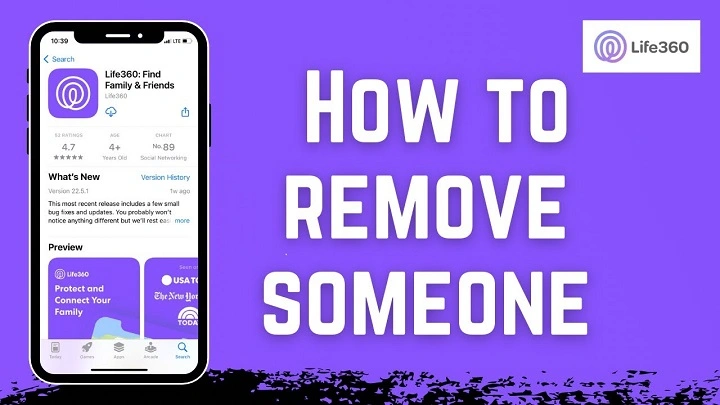
Removing someone from your Life360 Circle is a straightforward process but should be done with care, as it affects location-sharing and communication within the app. Whether you want to maintain privacy, clean up inactive members, or leave a circle altogether, this guide will walk you through each step of how to delete someone off Life360 efficiently and permanently.
Step-by-Step Guide to Deleting Someone from Life360
Step 1: Open the Life360 App
To begin, launch the Life360 app on your smartphone. Ensure you are logged into the correct account associated with the Circle you manage.
- On iPhone: Tap the Life360 icon on your home screen.
- On Android: Locate the app in your drawer or home screen and open it.
Step 2: Navigate to the Circle List
Life360 allows you to have multiple Circles (like Family, Friends, Work). To delete someone, you need to select the correct Circle:
- Tap the menu or Circle switcher at the top of the screen.
- Choose the Circle where the person you want to remove is listed.
Step 3: Access the Member List
Once inside the Circle:
- Tap Settings (gear icon) in the lower-right corner.
- Select Circle Management from the menu.
- Tap Members to view a list of everyone in the Circle.
Step 4: Remove the Person
Now that you’ve accessed the list of members:
- Find the member you want to delete.
- Tap their name.
- Scroll down and select Remove from Circle or Remove from This Circle.
- Confirm your choice when prompted.
Note: You must be the Circle Admin to remove someone. If you’re not the admin, you’ll need to ask the current admin to perform this step.
Step 5: Confirm Removal
After tapping “Remove,” Life360 will show a confirmation dialog:
- Confirm that you want to permanently remove the person.
- Once confirmed, that user will no longer have access to your location or messages from that Circle.
Step 6: Notify the Removed Member (Optional)
While Life360 does not notify users when they are removed, you may want to inform the person to avoid confusion. This is especially recommended for family or close friends.
What Happens When You Delete Someone from Life360?
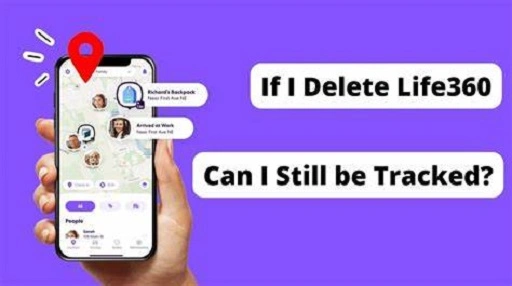
Location Sharing is Disabled
Once removed, the user will no longer be able to see or track the locations of anyone in the Circle.
Chat Access is Revoked
The person will also lose access to group chat features and shared alerts.
They Will Disappear from Your Map
The removed members will instantly disappear from the Life360 map and their history will no longer be accessible.
No Notification Sent Automatically
Life360 doesn’t send automatic notifications when someone is removed, so the removal is discreet unless you inform them directly.
How to Leave a Circle Instead (If You Don’t Want to Remove Others)
If you don’t want to remove someone but instead want to exit a Circle yourself:
- Open Life360.
- Tap Settings > Circle Management > Leave Circle.
- Confirm your choice to exit the group.
How to Make Someone an Admin Before Removing Yourself
If you’re an admin and want to leave the Circle without deleting it:
- Go to Circle Management > Members.
- Tap the name of the new person you want to make Admin.
- Select Make Admin.
- Then leave the Circle as described above.
Additional Considerations
Can a Removed Person Rejoin the Circle?
Yes, but only if invited again using the Circle’s invite code. They won’t be able to rejoin on their own.
Can You Remove Yourself from a Circle?
Absolutely. Just follow the Leave Circle steps mentioned above.
Will the Removed Person Be Able to See Past Data?
No. Once removed, they won’t have access to prior location history or Circle messages.
What if You Want to Delete the Entire Circle?
Only the Circle Admin can delete a Circle. This can be done by removing all members and then leaving the Circle themselves.
Is There a Way to Hide Your Location Without Deleting?
Yes. You can pause location sharing temporarily without leaving or removing members by going to:
- Settings > Location Sharing > Turn Off Location.
FAQs About Deleting Someone from Life360
Can I delete someone from Life360 without them knowing?
Yes. Life360 does not send notifications when someone is removed from a Circle.
Do I need to be an admin to delete someone?
Yes, only Circle Admins can remove members from a Circle.
What happens to a person’s location history after they are removed?
It’s erased from the Circle’s shared data. They lose access and are no longer visible on the map.
Can someone rejoin the Circle after being removed?
Only if they receive a new invitation link or code from an existing member or admin.
Is there a difference between deleting someone and pausing their location?
Yes. Deleting removes them from the Circle entirely. Pausing just hides their real-time location temporarily.
Managing your Life360 Circle is essential for maintaining privacy and ensuring everyone involved remains relevant and trusted. Whether you’re a parent managing your family or a user simply wanting more control over your personal space, knowing how to delete someone off Life360 empowers you to manage your digital circle effectively. Follow the steps above to ensure that the deletion is done correctly and that your privacy remains intact.