

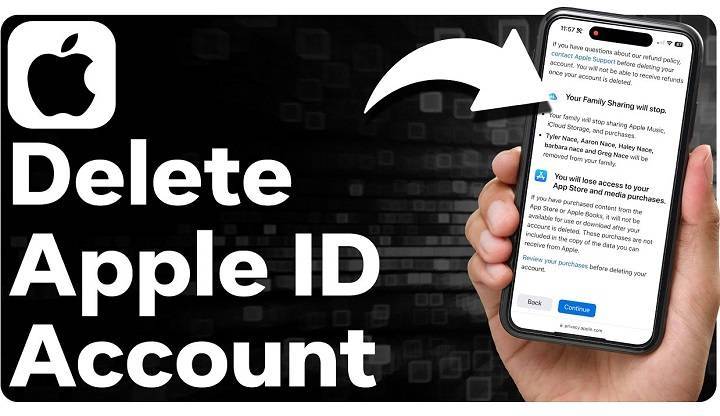
Your Apple ID serves as the gateway to Apple’s ecosystem, granting you access to a myriad of services such as iCloud, the App Store, iTunes, and more. However, there may come a time when you decide to part ways with your Apple ID due to various reasons such as privacy concerns, account consolidation, or simply a change in preferences. Deleting your Apple ID is a significant decision, as it will permanently remove access to all Apple services and content associated with it. In this comprehensive guide, we’ll walk you through the steps to delete your Apple ID safely and securely, ensuring that you understand the implications and considerations involved.
Understanding the Implications
Before proceeding with the deletion of your Apple ID, it’s crucial to understand the implications of this action. Deleting your Apple ID will result in the following consequences:
Loss of Access: You will lose access to all Apple services and content associated with your Apple ID, including iCloud storage, App Store purchases, iTunes content, iMessage, FaceTime, and more.
Data Loss: Any data stored in iCloud, such as photos, videos, documents, backups, and app data, will be permanently deleted. Therefore, it’s essential to back up any important data before deleting your Apple ID.
Device Disassociation: If your Apple ID is signed in on any Apple devices, including iPhone, iPad, Mac, or Apple Watch, they will be disassociated from your account. This means that you’ll no longer be able to access iCloud services, download apps from the App Store, or use features like Find My iPhone.
App and Media Loss: Any purchased apps, music, movies, TV shows, or books tied to your Apple ID will no longer be accessible or downloadable after deletion.
Preparing for Deletion
Before deleting your Apple ID, it’s essential to take the following preparatory steps:
Back Up Your Data: Ensure that you have backed up any important data stored in iCloud, such as photos, videos, documents, contacts, calendars, and app data. You can back up your data using iCloud Backup or iTunes on your computer.
Transfer Purchases: If you have purchased content from the App Store, iTunes Store, or iBooks Store, make sure to download and back up any purchased apps, music, movies, TV shows, or books to your device or computer.
Review Subscriptions: Cancel any active subscriptions tied to your Apple ID to avoid being charged after the account deletion. You can manage your subscriptions in the App Store or iTunes settings.
Sign Out of Devices: Sign out of your Apple ID on all devices, including iPhone, iPad, Mac, Apple Watch, and Apple TV. This will prevent any devices from being associated with your Apple ID after deletion.
Deleting Your Apple ID
Once you’ve completed the preparatory steps, you can proceed with the deletion of your Apple ID. Here’s how to do it:
Visit the Apple ID Account Page: Open a web browser on your computer or mobile device and navigate to the Apple ID account management page at appleid.apple.com.
Sign In to Your Apple ID: Log in with the Apple ID and password that you want to delete.
Navigate to the “Data & Privacy” Section: Once logged in, scroll down to the “Data & Privacy” section and click on “Manage Your Data and Privacy.”
Start the Deletion Process: In the “Manage Your Data and Privacy” section, locate the option to “Delete Your Account” or “Request to Delete Your Account” and click on it.
Follow the On-Screen Instructions: Apple will provide you with instructions on how to proceed with the deletion process. Read the information carefully and follow the on-screen prompts to confirm your identity and initiate the deletion request.
Verify Your Identity: To verify your identity, Apple may ask you to answer security questions, enter a verification code sent to your trusted devices, or confirm your identity using other methods.
Review Your Data: Before proceeding with the deletion, Apple will display a summary of the data and content that will be permanently deleted as a result of deleting your Apple ID. Review this information carefully to ensure you understand the consequences.
Confirm Deletion: Once you’ve reviewed the information and are ready to proceed, confirm your decision to delete your Apple ID by clicking on the appropriate button or link.
Wait for Confirmation: After confirming your deletion request, Apple will process the request, and you will receive a confirmation email indicating that your Apple ID deletion request has been received.
Final Confirmation: Depending on your region and local regulations, Apple may require additional time to process your deletion request. Once your request is processed, you will receive a final confirmation email notifying you that your Apple ID has been permanently deleted.
After Deletion
After deleting your Apple ID, there are a few additional steps you should take to ensure a smooth transition:
Update Account Information: Remove any references to your deleted Apple ID from other services or accounts where it was used as a sign-in method.
Transfer Purchases: If you have purchased content tied to your deleted Apple ID, make sure to download and back up any purchased apps, music, movies, TV shows, or books to your device or computer.
Inform Contacts: If you regularly communicated with contacts using your Apple ID email address, inform them of your account deletion and provide alternative means of communication if necessary.
Secure Other Accounts: Review your other online accounts and ensure they are secure. Update passwords and enable two-factor authentication where available to enhance security.
Explore Alternatives: Explore alternative services or platforms that meet your needs without requiring an Apple ID if you still require similar functionalities.
Related Post:
Breaking Free: A Comprehensive Guide on How to Delete Your Reddit Account
Mastering Snapchat: A Comprehensive Guide on How to Delete My AI on Snapchat
Cutting Ties: A Complete Guide on How to Delete Your Google Account
Deleting your Apple ID is a significant decision that should be made thoughtfully after considering the implications and alternatives. By following the steps outlined in this guide, you can delete your Apple ID safely and securely, ensuring that your data and privacy are protected. Remember to back up any important data, transfer purchases, and inform contacts before proceeding with the deletion process. Once your Apple ID is deleted, take the necessary steps to update account information and secure other accounts. While parting ways with your Apple ID may seem daunting, it can also be liberating, allowing you to take control of your digital presence and privacy.