


In the digital age, our smartphones have become an integral part of our lives. We use them for communication, entertainment, and even shopping. One of the most popular app stores for Android devices is the Google Play Store. However, as we use it to download various apps and games, our Play Store history can become cluttered over time. This can make it challenging to find the apps we need or to maintain privacy. In this comprehensive guide, we’ll show you how to delete Play Store history step by step, ensuring your device stays organized and your privacy intact.
Why Delete Play Store History?
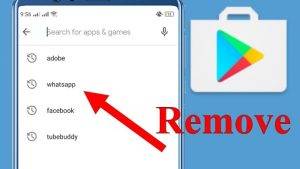
- Understand the importance of clearing your Play Store history.
- Benefits of a clean Play Store history:
- Improved device performance.
- Enhanced privacy.
- Easier app discovery.
- More storage space.
Clearing Play Store Search History:
- Step 1: Open the Play Store app.
- Step 2: Access the menu.
- Step 3: Go to “Settings.”
- Step 4: Tap on “Clear local search history.”
- Step 5: Confirm the action.
Removing Individual App History:

- Step 1: Open the Play Store app.
- Step 2: Tap the three horizontal lines in the upper-left corner.
- Step 3: Go to “My apps & games.”
- Step 4: Navigate to “Library” or “Installed.”
- Step 5: Tap on the app you want to remove from history.
- Step 6: Tap “Remove from library.”
Deleting All Play Store History:
- Step 1: Open the Play Store app.
- Step 2: Tap the three horizontal lines in the upper-left corner.
- Step 3: Go to “Settings.”
- Step 4: Scroll down to “Clear history.”
- Step 5: Confirm the action.
Managing Auto-Update History:

- Step 1: Open the Play Store app.
- Step 2: Tap the three horizontal lines in the upper-left corner.
- Step 3: Go to “Settings.”
- Step 4: Tap on “Auto-update apps.”
- Step 5: Choose your desired auto-update settings.
Clearing Google Play Store Cache:
- Step 1: Go to your device’s “Settings.”
- Step 2: Navigate to “Apps” or “Application Manager.”
- Step 3: Find and tap on “Google Play Store.”
- Step 4: Tap on “Storage.”
- Step 5: Select “Clear cache.”
Frequently Asked Questions (FAQs):
- What happens when you clear your Play Store history?
- Does clearing Play Store history delete purchased apps?
- Is it safe to clear Play Store data?
- Can I recover deleted Play Store history?
- How often should I clear my Play Store history?
Also Read : How to Delete Google Pay Transaction History
Watch How To Delete Google Play History
Clearing your Play Store history is a simple yet effective way to maintain your device’s performance, privacy, and organization. By following the step-by-step instructions in this guide, you can easily delete Play Store history and enjoy a smoother Android experience. Whether you want to remove specific app entries or clear your entire history, taking control of your Play Store history is a valuable skill for any Android user. So, go ahead and keep your device clutter-free and your data secure!