


Your iPhone is filled with memories—photos from vacations, celebrations, and random moments that made you smile. But over time, storage fills up, clutter sets in, or you simply want to clean up. That’s when learning how to delete pictures from an iPhone becomes essential.
Whether you’re freeing up space, organizing albums, or removing duplicates, this guide walks you through every method for deleting photos on your iPhone, permanently or temporarily.
Why You Might Want to Delete Photos from Your iPhone
There are several reasons users choose to delete pictures from their iPhones:
You’re running out of iPhone storage
You accidentally took too many duplicates
You want to remove sensitive or private photos
You’re cleaning up old albums or screenshots
You’re selling or giving away your iPhone
Whatever the reason, iOS makes it easy—but there are a few things to know to ensure photos are fully removed.
What Happens When You Delete Photos on iPhone?
When you delete a photo in the Photos app, it doesn’t immediately disappear from your device. Instead, it goes into the Recently Deleted album, where it remains for 30 days. During this period, you can either restore or permanently remove it.
Key things to remember:
- Deleted photos still take up space until permanently removed
- iCloud Photos syncs deletions across all devices
- Photos deleted on one Apple device are deleted everywhere
This is helpful if you want a chance to recover an image, but not so much if your goal is immediate, permanent deletion.
How to Delete a Single Picture from Your iPhone
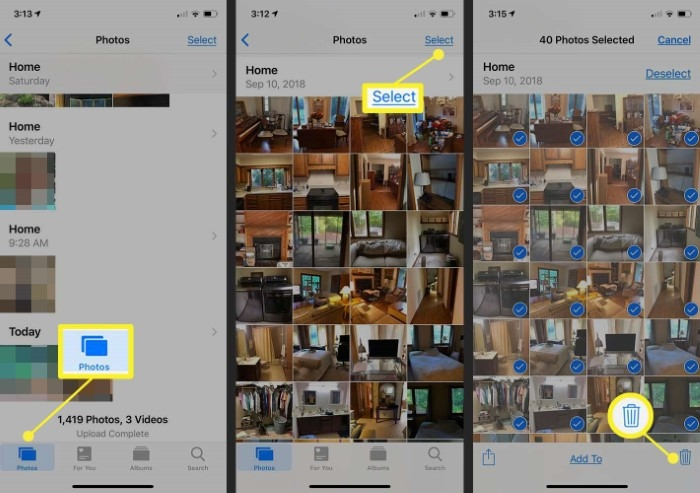
Here’s how to delete an individual photo from the iPhone Photos app:
- Open the Photos app
- Navigate to the photo you want to delete
- Tap the trash bin icon at the bottom right
- Tap Delete Photo to confirm
That’s it. The image moves to Recently Deleted and will remain there for 30 days unless manually erased sooner.
How to Delete Multiple Photos at Once
Want to clean up a whole bunch of pictures in one go? Use this bulk deletion method:
- Open the Photos app
- Tap Library or Albums
- Tap Select at the top-right
- Choose all the photos you want to delete
- Tap the trash bin icon
- Confirm with Delete Photos
This is especially useful for deleting screenshots, bursts, or unnecessary selfies.
How to Permanently Delete Photos from iPhone
Deleting a photo doesn’t mean it’s gone forever—unless you take one more step.
To permanently delete photos:
- Open the Photos app
- Scroll down and tap Albums
- Scroll to the bottom and open Recently Deleted
- Tap Select at the top
- Choose photos or Select All
- Tap Delete and confirm with Delete Photos
Now those images are gone for good and no longer take up space on your iPhone.
How to Delete All Photos from iPhone at Once
Need a fresh start or want to clear out your iPhone completely?
Use this quick method:
- Open the Photos app
- Tap on Library > All Photos
- Tap Select at the top
- Drag your finger across rows of photos to select them all
- Hit the trash bin and confirm deletion
Then follow the earlier steps to empty the Recently Deleted album.
Alternatively, you can use iCloud.com or a Mac to delete everything faster and sync those changes.
How to Delete Photos by Album
Some users prefer to delete photos from specific albums like “Screenshots,” “Selfies,” or “WhatsApp.”
To delete by album:
- Go to the Photos app
- Tap Albums
- Open the album (e.g., Screenshots)
- Tap Select, choose photos, then tap the trash bin
Important: Deleting a photo from an album deletes it from All Photos, too.
How to Delete Photos from iPhone But Not iCloud

This is a common question. If iCloud Photos is turned on, deleting a photo on your iPhone deletes it from all iCloud-connected devices.
To delete only from iPhone:
- Go to Settings > Apple ID > iCloud > Photos
- Turn off iCloud Photos
- Choose Remove from iPhone if prompted
- Now you can delete photos locally, without affecting iCloud
You can also back them up to an external drive or Google Photos before turning off iCloud sync.
How to Recover Deleted Photos on iPhone
If you’ve deleted a photo but changed your mind, you can recover it within 30 days.
- Open Photos > Albums > Recently Deleted
- Tap Select
- Choose the photo(s)
- Tap Recover
After 30 days, the photos are removed permanently and cannot be recovered from the device.
Using a Mac to Delete iPhone Photos
If you prefer managing files on a larger screen, use your Mac:
- Connect iPhone to Mac via USB
- Open the Photos app on Mac
- Click Import tab > View iPhone photos
- Select and delete photos
- Use the Image Capture app for faster photo removal
Photos deleted from Mac will also sync the deletion to your iPhone if iCloud is enabled.
Using Third-Party Apps to Delete Photos
There are apps that help clean up photos more efficiently:
- Gemini Photos: Finds duplicates and blurry photos
- Clean My Photos: Groups screenshots, selfies, and similar images
- Photo Cleaner: Offers batch deletion tools
These apps can speed up the cleaning process, especially if your library is huge.
What to Do Before Selling or Giving Away Your iPhone
Before handing your iPhone to someone else, make sure all your personal photos and data are completely erased.
Steps to follow:
- Back up all important data to iCloud or a computer
- Turn off Find My iPhone
- Sign out of iCloud and Apple ID
- Go to Settings > General > Transfer or Reset iPhone
- Tap Erase All Content and Settings
This ensures no one can recover your photos, and the iPhone becomes like-new for the next user.
FAQs About Deleting Photos on iPhone
Can I delete iPhone photos without deleting them from iCloud?
Yes, but first turn off iCloud Photos under iPhone Settings to unlink the photo sync.
How do I permanently delete photos from my iPhone?
After deleting, go to the Recently Deleted album and remove the photos again to erase them permanently.
Do deleted photos still take up storage?
Yes, until they’re cleared from the Recently Deleted folder, they still occupy space.
Is there a way to delete all photos quickly?
Yes. Use the “Select” tool in the All Photos tab, drag to highlight all, then delete. Finish by clearing Recently Deleted.
Why do deleted photos keep coming back on the iPhone?
If iCloud Photos is on, photos deleted from one device may reappear if another device syncs them back. Disable iCloud or delete from all devices.