

If you want to clean up your document in Microsoft Word and remove paragraph marks (¶), this guide will show you how to do it easily. Whether you’re looking to hide them for a cleaner view or delete them entirely from your document, follow the steps below to manage paragraph marks in Word.
Step-by-Step Guide to Deleting Paragraph Marks in Word
Step 1: Open Your Document in Microsoft Word
To start, open your Microsoft Word document where you want to remove the paragraph marks.
Step 2: Turn Off the Paragraph Marks (Show/Hide Feature)
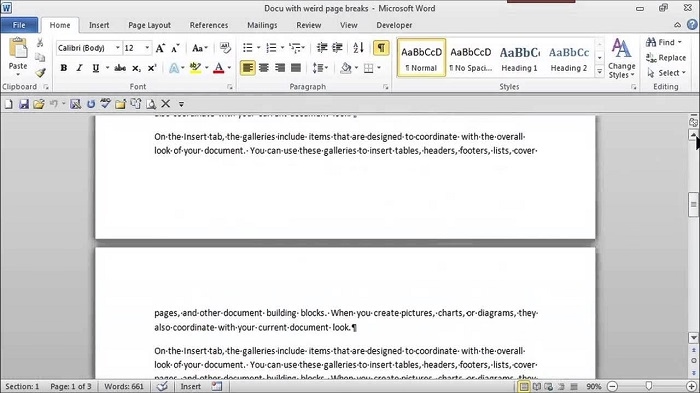
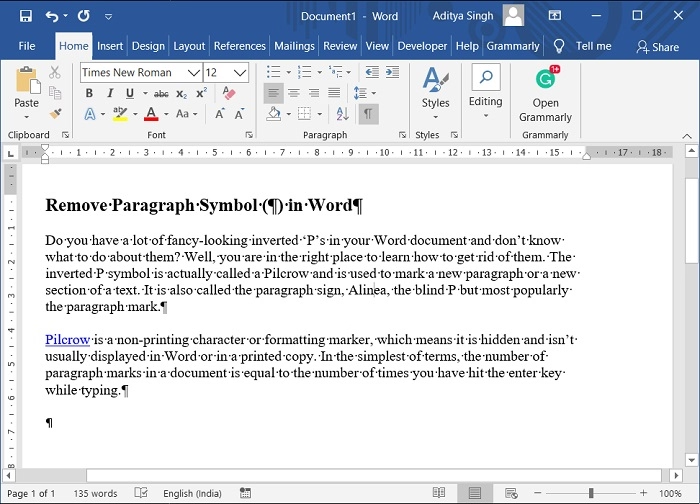
Paragraph marks, or other formatting symbols, are visible when the Show/Hide option is turned on. To remove the visible marks without affecting the actual formatting:
- Go to the Home tab in the ribbon.
- In the Paragraph group, look for the ¶ symbol (called Show/Hide). This button toggles the visibility of paragraph marks and other formatting symbols like spaces and tabs.
- Click the ¶ symbol to hide the paragraph marks.
This will hide the paragraph marks from your view, but they will still exist in the document. This method is useful when you just want a cleaner view of your document.
Step 3: Delete Paragraph Marks from Your Document (If Needed)
If you want to delete the paragraph marks entirely from your document, you’ll need to follow a slightly different process. Here’s how:
Using the Find and Replace Function:
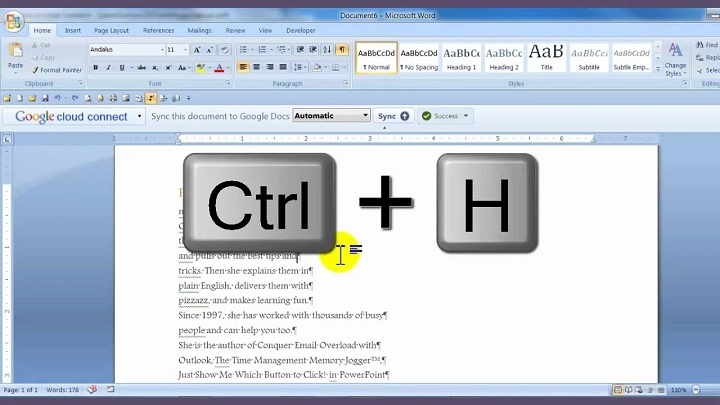
- Press Ctrl + H (Windows) or Cmd + H (Mac) to open the Find and Replace dialog box.
- In the Find what field, type ^p. This is the special code for paragraph marks in Word.
- Leave the Replace with the field blank (if you want to delete the paragraph marks completely).
- Click Replace All to remove all paragraph marks from your document.
This will delete all the paragraph marks in your document, but it will not affect the actual content of your paragraphs.
Step 4: Verify the Deletion
After clicking Replace All, Word will tell you how many paragraph marks were replaced. Go through your document to ensure that all paragraph marks have been deleted or removed as per your instructions.
Step 5: Turn Paragraph Marks Back On (If Desired)
If you want to see paragraph marks again, just repeat Step 2 by clicking on the ¶ symbol in the Home tab. This will toggle the Show/Hide feature and make the paragraph marks visible again.
Additional Considerations
What Happens if I Delete All Paragraph Marks?
Deleting all paragraph marks will remove the markers that signify the end of a paragraph, but it will not delete any content. However, if you delete every paragraph mark in a document, all of your text will appear in a continuous block. Be cautious when using Replace All, especially if the document has multiple paragraphs.
Can I Remove Specific Paragraph Marks Only?
Yes, you can manually delete specific paragraph marks by placing your cursor directly after the paragraph mark and pressing Backspace. However, using the Find and Replace method (Step 3) is quicker if you need to remove several or all paragraph marks.
Why Do Paragraph Marks Appear in Word?
Paragraph marks appear in Word when the Show/Hide feature is turned on. These marks help users see where paragraphs end, which is useful for formatting, especially when working with spaces, line breaks, or unwanted empty paragraphs.
How Can I Remove Line Breaks Along with Paragraph Marks?
To remove both paragraph marks and line breaks, you can use the Find and Replace function with ^p for paragraph marks and ^l for manual line breaks in the Find what field.
FAQs About Deleting Paragraph Marks in Word
Can I remove paragraph marks without affecting my formatting?
Yes, you can hide paragraph marks using the Show/Hide feature without removing or altering the actual formatting of your document.
How do I remove paragraph marks from a specific section of my document?
If you only want to remove paragraph marks in a specific section, use the Find and Replace tool. Select the section of text first, then run the Replace All command for that part of the document.
How do I remove extra paragraph marks in Word?
To remove extra paragraph marks, use the Find and Replace tool to find multiple paragraph marks (e.g., ^p^p) and replace them with a single one or nothing at all.
How do I hide paragraph marks without removing them in Word?
Simply click on the ¶ symbol in the Home tab. This will hide the paragraph marks from your view without removing them from the document.
Can I undo the deletion of paragraph marks in Word?
Yes, if you accidentally delete paragraph marks, you can press Ctrl + Z (Windows) or Cmd + Z (Mac) to undo the action.
Deleting or hiding paragraph marks in Microsoft Word is a straightforward process. Whether you need a cleaner view of your document or you want to remove the marks for good, these simple steps will help you manage paragraph marks and other formatting symbols effectively. Always be careful when using the Replace All function to avoid losing important formatting.