

If you’ve decided that Kindle Unlimited is no longer for you and you want to cancel your subscription, this guide will walk you through the process. Deleting your Kindle Unlimited subscription is a simple task, but it’s important to ensure you’ve followed the correct steps to avoid being charged for future months.
Step-by-Step Guide to Deleting Your Kindle Unlimited Subscription
Open Amazon
- Start by opening your web browser and go to the Amazon website: https://www.amazon.com.
- Log in to your Amazon account using your username and password.
Go to “Your Account”
- Once logged in, hover over the Accounts & Lists option in the top-right corner of the page.
- From the dropdown menu, click on Your Account.
Access Your Kindle Unlimited Settings
- Scroll down to the Memberships and Subscriptions section.
- Select Kindle Unlimited Settings.
Cancel Kindle Unlimited Subscription
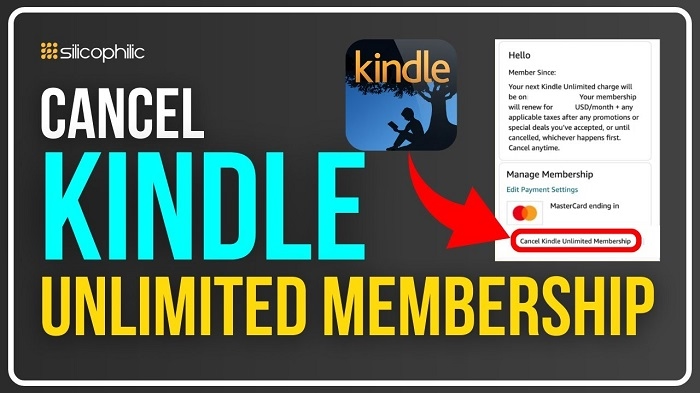
- In the Kindle Unlimited Settings section, you will see an option that says Cancel Kindle Unlimited Membership. Click on it.
- You will be prompted to confirm the cancellation. Amazon may offer a special offer or ask if you want to pause the membership instead of canceling. Select Cancel Membership.
Confirm the Cancellation
- After clicking Cancel Membership, you will be asked to confirm your decision. Confirm that you want to cancel your Kindle Unlimited subscription.
- Your subscription will be canceled, and you will no longer be charged for the next billing cycle.
Review Your Billing Cycle
- After canceling, you’ll still have access to Kindle Unlimited until the end of your current billing cycle. You can keep reading books until the next renewal date, but you won’t be charged for the next month.
- You can always return to Kindle Unlimited Settings to verify that the subscription has been successfully canceled.
Additional Considerations
What Happens After You Cancel Kindle Unlimited?
Once you cancel your Kindle Unlimited subscription, you’ll lose access to the books that you were borrowing under the service. However, you can still keep any books you’ve purchased outside of the Kindle Unlimited service.
Can I Get a Refund After Canceling?
Amazon does not typically offer refunds for unused portions of your Kindle Unlimited membership. You will have access to your subscription benefits until the end of your current billing cycle.
Can I Rejoin Kindle Unlimited Later?
Yes, if you decide to return to Kindle Unlimited, you can rejoin at any time. Simply visit the Kindle Unlimited page and subscribe again.
How to Keep Track of Kindle Unlimited Charges
To avoid surprises with Kindle Unlimited charges, it’s a good idea to keep track of your subscription renewal dates. You can check the status of your subscription anytime in the Kindle Unlimited Settings section under your Amazon account.
FAQs About Deleting Kindle Unlimited Subscription
Can I delete Kindle Unlimited on the Kindle device?
No, the Kindle Unlimited subscription must be canceled through Amazon’s website, either on a computer or mobile browser.
Will I lose all my books if I cancel Kindle Unlimited?
You will lose access to Kindle Unlimited books once your subscription ends. However, any books you’ve purchased outside of the service will remain in your library.
Can I pause my Kindle Unlimited membership instead of canceling?
Amazon may offer you the option to pause your membership, but this feature is not always available. If you decide to pause your membership, you will not be charged for the months you’re on hold.
How do I know if my cancellation was successful?
You will receive a confirmation email once your Kindle Unlimited subscription has been successfully canceled. You can also check the status by visiting Kindle Unlimited Settings in your account.
Does canceling Kindle Unlimited cancel my Amazon Prime membership?
No, canceling Kindle Unlimited will not affect your Amazon Prime membership. These are separate subscriptions, and you will need to manage them individually.
Canceling your Kindle Unlimited subscription is a simple process that can be done through your Amazon account. Whether you decide to cancel for financial reasons, because you no longer use the service, or because you prefer to buy books outright, these steps ensure that you’re not charged for any future months. Keep track of your cancellation confirmation and ensure that your billing cycle ends on the date you expect.