


If you’re working with text boxes, tables, or shapes in Google Docs and need to delete them, this guide will show you the necessary steps to remove them. Whether you’re dealing with text boxes in a document, drawing boxes, or table cells, you can easily delete them using the built-in tools provided by Google Docs.
Step-by-Step Guide to Deleting Boxes in Google Docs
Deleting Text Boxes
Open Your Google Docs Document
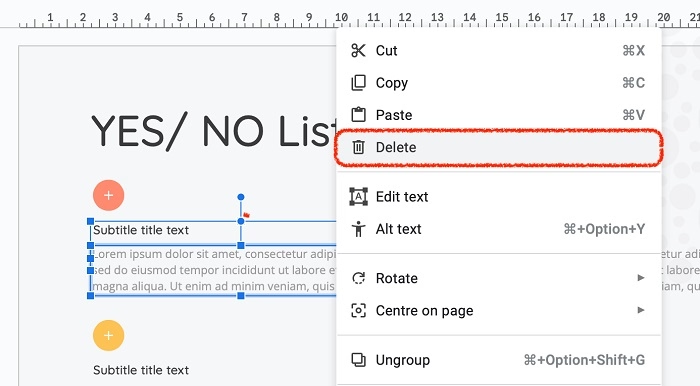
- Open Google Docs and navigate to the document where you want to delete the text box.
- Log in to your Google account if you’re not already signed in.
Locate the Text Box
- Scroll through the document until you find the text box you want to delete.
- Click inside the text box to select it.
Delete the Text Box
- Once the text box is selected, click the Delete key on your keyboard (or Backspace on Mac).
- The entire text box will be deleted, including its contents.
Deleting Shapes or Drawings
Locate the Shape or Drawing
- Shapes or drawings are often used in Google Docs for various purposes, including flow charts or diagrams.
- Click on the shape or drawing you want to delete.
Select the Shape or Drawing
- When you click on the shape or drawing, you should see a border around it, indicating it’s selected.
- If it’s part of a drawing, you might need to click on the Edit option to open the drawing editor.
Delete the Shape or Drawing
- Once selected, press the Delete key on your keyboard (or Backspace on Mac) to remove the shape or drawing.
- If the shape is part of a drawing, you can delete it directly from the drawing editor by selecting the shape and clicking the trash bin icon.
Deleting Table Cells or Boxes
Find the Table in Your Document
- Scroll through your Google Docs document to find the table that contains the cell or box you want to delete.
- If the box is within a table cell, click inside the table.
Select the Table Cell
- Click inside the table cell you want to delete. If you want to delete an entire row or column, click on the row or column header to select it.
Delete the Cell or Table
- Once selected, right-click on the table cell or row, and from the context menu, select Delete Row or Delete Column if you want to remove the entire row or column.
- To delete an entire table, right-click inside the table and select Delete Table from the context menu.
Deleting a Text Box within a Drawing
If the box is part of a drawing (such as a text box or shape), follow these steps:
Open the Drawing Editor
- Click on the drawing or text box within the document to select it.
- Click the Edit button that appears, which will open the drawing editor.
Select the Box to Delete
- Inside the drawing editor, click on the box or shape you want to delete.
- The box will be highlighted.
Delete the Box
- Press the Delete key on your keyboard (or Backspace on Mac) to remove the box.
- Once the box is deleted, click Save and Close to return to the document.
Additional Considerations
Undo Option
If you accidentally delete a box or shape, use the Undo option to restore it. Simply press Ctrl + Z (Windows) or Cmd + Z (Mac) to undo the deletion.
Tables vs. Shapes
When working with Google Docs, it’s important to distinguish between tables and shapes. Tables are structured grid-based containers, while shapes are freeform elements created using the drawing tool. Both can be deleted, but their removal process differs slightly.
Removing Multiple Boxes
If you have multiple boxes or shapes to delete, repeat the steps for each one. Unfortunately, there’s no bulk delete option for shapes or text boxes, so each item needs to be deleted individually.
FAQs About Deleting Boxes in Google Docs
How do I delete multiple text boxes at once?
Google Docs does not currently offer a way to delete multiple text boxes at once. Each text box must be selected and deleted individually.
Can I delete a table in Google Docs?
Yes, you can delete an entire table by right-clicking inside the table and selecting Delete Table. Alternatively, you can delete specific rows or columns by right-clicking and selecting the delete option for those elements.
How do I delete a drawing or shape from a Google Docs document?
Click on the shape or drawing to select it, then press the Delete key on your keyboard. If the shape is within a drawing, click Edit, select the shape, and click the trash bin icon.
What if I can’t select the text box or shape?
If you can’t select the box, ensure that it is not grouped with other elements. Sometimes, adjusting the layout of the document or resizing the shape can help you select it.
Does deleting a table also delete its content?
Yes, when you delete a table in Google Docs, all its content is removed as well. If you want to preserve the content, make sure to copy it before deleting the table.
Deleting boxes in Google Docs—whether they are text boxes, shapes, or table cells—is a straightforward process. By following the methods above, you can easily remove unwanted boxes and clean up your document. Whether you’re dealing with individual elements or tables, the steps provided will help you maintain a neat and organized document.