


If you no longer wish to use Amazon Music and want to cancel your subscription, you can delete your account or simply cancel your subscription depending on your needs. This guide will walk you through the steps to delete your Amazon Music account, including how to cancel a subscription or close your account completely.
Step-by-Step Guide to Deleting Your Amazon Music Account
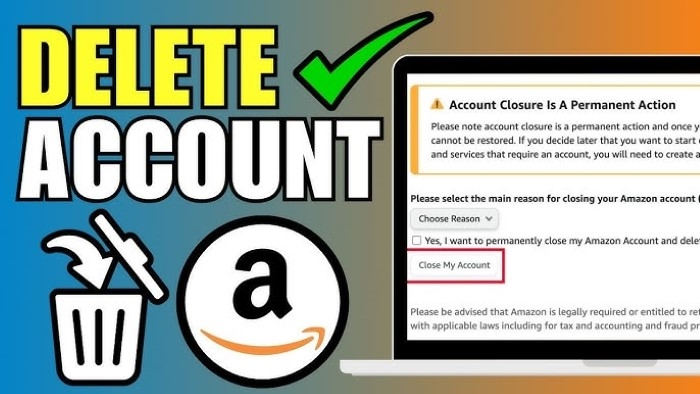
Log Into Your Amazon Music Account
- Open your web browser and go to the Amazon Music website at www.amazon.com/music.
- Log in to your Amazon account using your email and password.
Step 2: Go to Your Amazon Music Settings
- Once logged in, hover over the Account & Lists dropdown in the top-right corner of the page.
- From the dropdown menu, select Your Account to open your account settings.
Navigate to Your Amazon Music Subscription
- In the Your Account section, scroll down to Memberships & Subscriptions.
- Click on Amazon Music Settings or Manage Subscription to go to your subscription management page.
Cancel Your Amazon Music Subscription
If you want to cancel your Amazon Music subscription but keep your account:
- On the subscription management page, find your Amazon Music subscription, whether it’s Amazon Music Unlimited or Amazon Prime Music.
- Click on Cancel Subscription. Amazon will ask you to confirm your decision.
- Follow the prompts to finalize the cancellation. You’ll still have access to your subscription until the end of the current billing period, but you will not be charged for future months.
Delete Your Amazon Music Account (Optional)
If you wish to completely delete your Amazon Music account, which includes removing all data, follow these steps:
- Go to the Amazon Music Contact Us page.
- Select Prime Music or Music Unlimited and choose Account Deletion as your issue.
- Follow the instructions to request account deletion. You may need to confirm your identity and provide reasons for closing your account.
- Amazon will process your request and send you a confirmation email.
Verify the Cancellation or Deletion
- If you canceled your subscription, you should receive an email confirming the cancellation.
- If you requested account deletion, ensure that you receive a confirmation email from Amazon, confirming that your account and data have been permanently deleted.
Confirm the Account is Deleted
- To ensure your Amazon Music account has been deleted, attempt to log into the Amazon Music app or website. If you are no longer able to access your account, the deletion was successful.
Additional Considerations
Can I Reactivate My Amazon Music Subscription?
Yes, if you canceled your Amazon Music subscription and want to return to the service, you can reactivate it by logging into your Amazon account and resubscribing. However, once your Amazon Music account is deleted, you will need to create a new account if you want to use the service again.
Can I Get a Refund If I Cancel My Subscription Early?
Amazon typically does not offer refunds for unused portions of a paid subscription. However, you will continue to have access to the service until the end of your current billing period.
Deleting Your Amazon Account vs. Amazon Music Account
If you want to delete your Amazon Music account, you only need to follow the steps above. Deleting your Amazon account entirely is a different process and will remove all your Amazon services, including Amazon Prime, orders, and data across the entire Amazon platform. Be sure to differentiate between deleting your Amazon Music account and your entire Amazon account.
Cloud Data and Music Deletion
When you delete your Amazon Music account, all your music preferences, playlists, and downloaded content will be deleted from Amazon’s servers. Ensure that you back up any downloaded music or playlists before proceeding with the deletion.
FAQs About Deleting Your Amazon Music Account
Can I delete my Amazon Music account without canceling my subscription?
No, you will need to cancel your subscription first before requesting account deletion. If you wish to keep using Amazon Music without a subscription, you will need to downgrade to Amazon Prime Music (which is included with Amazon Prime) instead of Amazon Music Unlimited.
Can I recover my account after I delete it?
Once your Amazon Music account is deleted, it cannot be recovered. If you decide to return to Amazon Music, you will need to create a new account.
Will deleting my Amazon Music account delete my entire Amazon account?
No, deleting your Amazon Music account will not affect your main Amazon account. If you want to delete your entire Amazon account, you must request that separately through Amazon’s general account deletion process.
How long does it take to delete an Amazon Music account?
The deletion process usually takes a few days to be fully completed. You will receive a confirmation email once your account has been deleted.
How do I cancel my Amazon Music subscription if I subscribed via iTunes or Google Play?
If you subscribed to Amazon Music through a third-party service like iTunes or Google Play, you will need to cancel the subscription through those services instead of directly on the Amazon Music website.
Deleting your Amazon Music account or canceling your subscription is a straightforward process. By following the steps above, you can either cancel your subscription and stop future charges or delete your account completely. Be sure to back up any data you need before proceeding with account deletion, as it’s a permanent action.