


Tally ERP 9 is a popular accounting software used by businesses around the world. Managing ledgers is a fundamental part of accounting, but there may come a time when you need to delete a ledger in Tally. Whether it’s due to changes in your business structure or errors in ledger creation, it’s important to know how to do this correctly. In this comprehensive guide, we’ll walk you through the process of deleting a ledger in Tally, step by step.
Why Delete a Ledger in Tally?

Before we dive into the how-to, let’s understand why you might need to delete a ledger in Tally. Here are some common reasons:
- Change in Business Structure: When your business undergoes structural changes like mergers, acquisitions, or closures, you may need to remove obsolete or redundant ledgers.
- Data Cleanup: Over time, you might accumulate outdated or incorrect ledgers. Deleting them helps keep your accounting records accurate and organized.
- Error Correction: If you’ve created a ledger with incorrect details or made a mistake while setting it up, deletion is necessary to rectify the error.
Now that you understand the reasons, let’s move on to the step-by-step process.
Step 1: Open Tally ERP 9
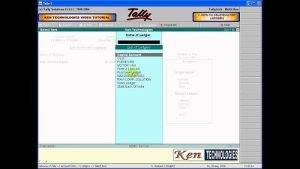
- Launch the Tally ERP 9 software on your computer.
Step 2: Select the Appropriate Company
- Choose the company for which you want to delete a ledger from the list of companies on the Tally screen.
Step 3: Access the Ledger List
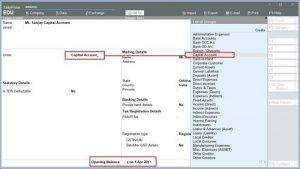
- Click on the “Accounts Info” option in the Gateway of Tally.
Step 4: Navigate to “Ledgers”
- In the “Accounts Info” menu, select “Ledgers.”
Step 5: Locate the Ledger to Delete
- Scroll through the ledger list or use the search function to locate the ledger you wish to delete.
Step 6: Delete the Ledger
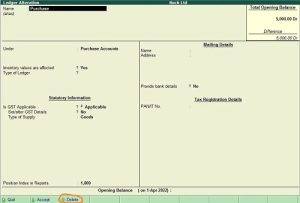
- Once you’ve found the ledger, select it.
- Press the “Alt + D” shortcut keys or click on “Delete” from the button bar.
- Tally will prompt you to confirm the deletion. Confirm by pressing “Enter.”
Step 7: Verify Deletion
- After confirming, Tally will delete the ledger. Double-check to ensure the ledger is no longer in the ledger list.
Step 8: Update Reports
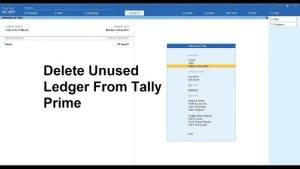
- It’s important to update any reports or transactions affected by the deleted ledger to maintain the accuracy of your financial records.
Step 9: Save Changes
- Don’t forget to save your changes to make them permanent.
Also Read : How to Delete a Slide in PowerPoint
Watch This Video Guide
In this guide, we’ve learned how to delete a ledger in Tally ERP 9. Deleting a ledger is a straightforward process, but it should be done with caution to avoid any unintended consequences. Always make sure to back up your data before making significant changes to your accounting records.
Remember that accurate and up-to-date financial records are crucial for making informed business decisions, so regularly review your ledgers and clean up any unnecessary or erroneous entries. By following the steps outlined in this guide, you can effectively manage your ledgers in Tally and maintain the integrity of your financial data.