

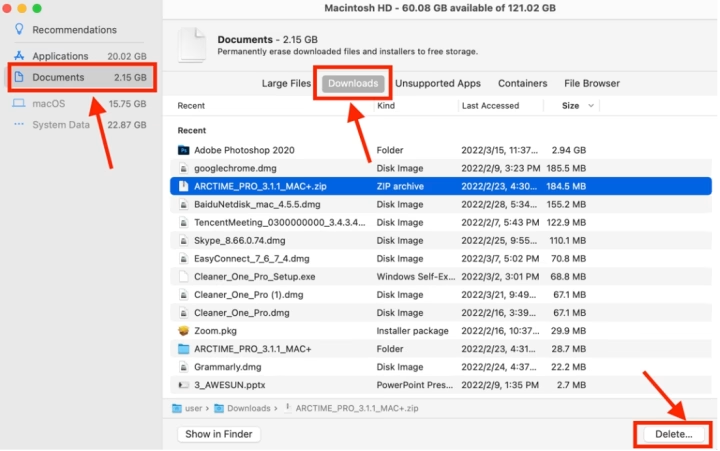
If you’re running out of storage space on your MacBook or simply want to clean up your system, deleting downloads is an easy way to free up space. This guide will walk you through how to delete downloaded files from your MacBook to keep your device organized and running smoothly.
Step-by-Step Guide to Deleting Downloads on MacBook
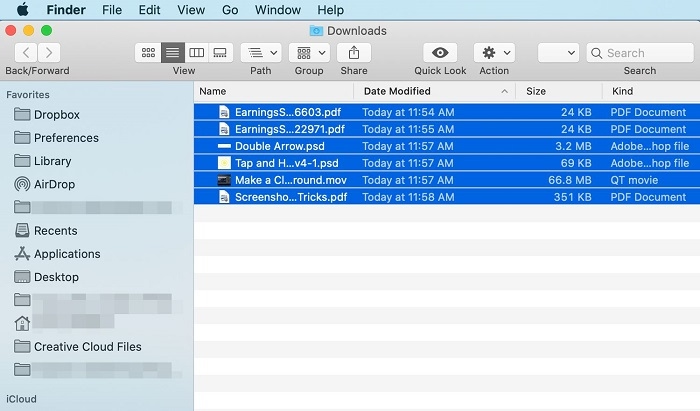
Open the Finder Application
- On your MacBook, open the Finder app. You can do this by clicking on the Finder icon in the Dock (the smiling face icon).
- In the Finder window, click on Downloads from the left sidebar under Favorites. This will display all the files you’ve downloaded.
Select the Files to Delete
- In the Downloads folder, you will see all the files you’ve downloaded from the internet, including PDFs, images, videos, and software installers.
- Click on the file you want to delete. To select multiple files, hold down the Command key while clicking on each file.
- If you want to delete all the files in the Downloads folder, press Command + A to select everything.
Move the Files to Trash
- Once the files are selected, either right-click on them and select Move to Trash or drag the selected files to the Trash icon in the Dock.
- Alternatively, after selecting the files, you can press Command + Delete to move them to the Trash.
Empty the Trash
- Deleting files from the Downloads folder doesn’t permanently remove them from your MacBook. To free up storage, you’ll need to empty the Trash.
- Right-click on the Trash icon in the Dock and select Empty Trash. You’ll be asked to confirm this action.
- Click Empty Trash to permanently delete the files from your MacBook.
Verify the Deletion
- After emptying the Trash, your files are permanently deleted, and you’ll free up space on your MacBook.
- You can go back to the Downloads folder to ensure it’s empty.
Additional Considerations
Recovering Files from Trash
If you accidentally delete a file and need it back, you can restore it from the Trash before emptying it. Simply open the Trash, right-click on the file, and select Put Back. This will restore the file to its original location in the Downloads folder.
Clearing Browser Downloads
Most browsers, such as Safari, Chrome, and Firefox, allow you to manage and clear downloaded files directly from the browser:
- Open your browser and go to the Downloads section (usually accessed by pressing Option + Command + L in Safari or clicking the downloads icon in Chrome).
- You can clear individual items or use the Clear All option to remove the entire download history.
Automatically Empty Trash
If you want to automatically delete files in the Trash after a certain period, you can enable this feature in the Finder preferences:
- Open Finder, then go to Finder > Preferences in the top menu.
- Select the Advanced tab.
- Check the option Remove items from Trash after 30 days.
This will automatically delete files in the Trash after 30 days, saving you the trouble of manually emptying it.
FAQs About Deleting Downloads on MacBook
How can I delete downloaded files from specific applications?
To delete downloaded files from apps like Safari or Chrome, open the app’s Downloads section and manually delete the files. You can also go to the Downloads folder via Finder to remove them.
How can I see how much space my Downloads folder is taking up?
To check the size of your Downloads folder, right-click on the Downloads folder in Finder and select Get Info. This will show you the total file size of the folder and how much space it’s using on your MacBook.
Can I recover files after emptying the Trash?
Once the Trash is emptied, the files are permanently deleted and cannot be recovered through standard means. You would need a third-party data recovery tool to attempt recovery, but success is not guaranteed.
Will deleting downloaded files affect my applications?
No, deleting files from the Downloads folder will not affect your applications. Only files you’ve manually downloaded (such as installers, documents, and images) will be deleted. System files or application data are stored elsewhere on your MacBook.
How often should I delete downloads on my MacBook?
It’s a good idea to periodically check and delete your Downloads folder to keep your MacBook organized and free up space. If you’re low on storage, you may want to do this more frequently.
Deleting downloaded files on your MacBook is a quick and effective way to free up space and keep your system organized. Whether you want to remove individual files or clear out the entire Downloads folder, these simple steps will help you manage your storage more efficiently.